
What is "SmartMiner Power"?
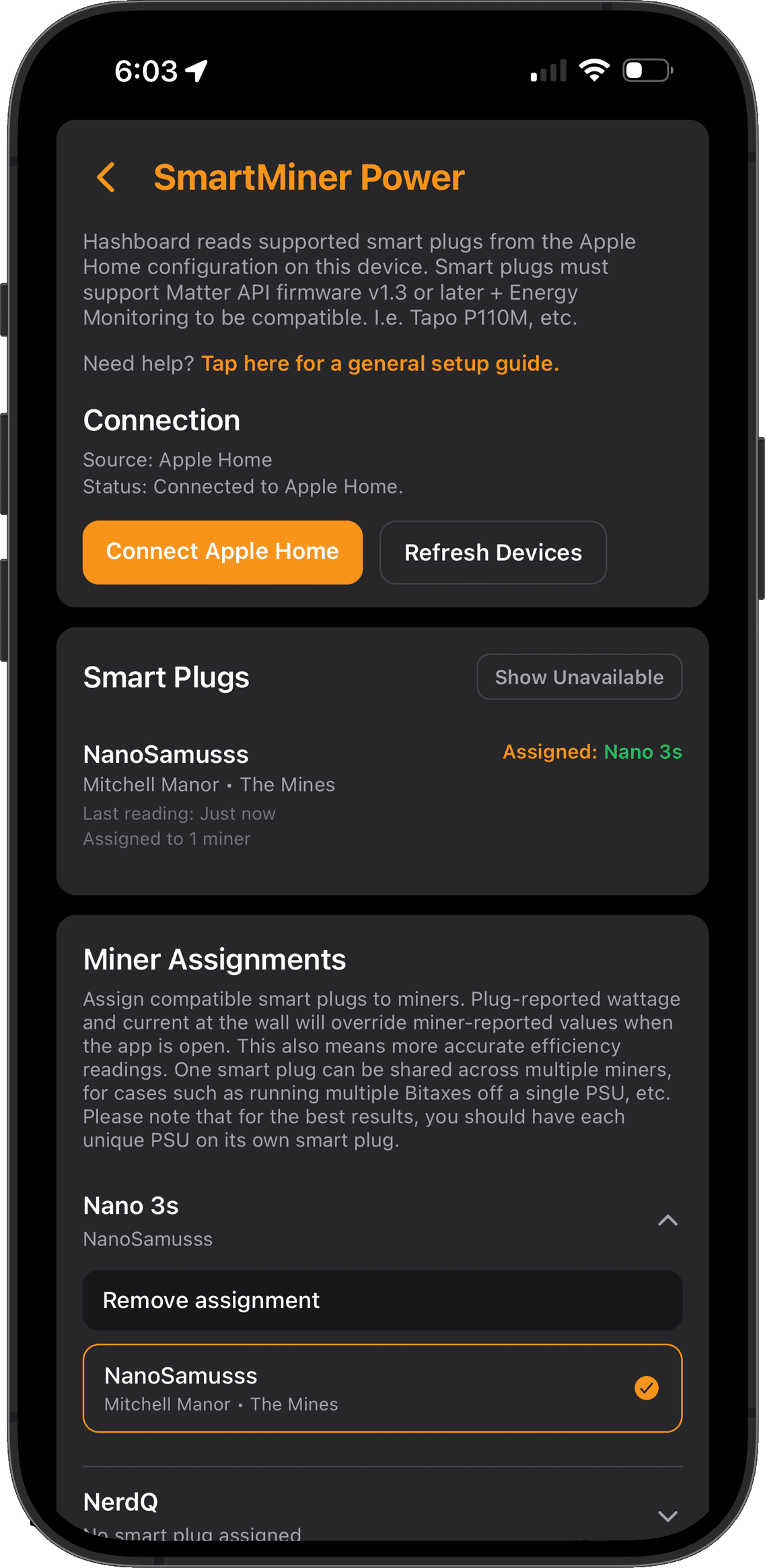
Utilizing SmartMiner truly brings the accuracy of your monitoring to the next level and is another game-changing first for the mining community from Hashboard! This functionality allows you to pair smart plugs with miners inside the app to override miner-reported power data with the actual usage at the wall, and track it with the built-in historical data functionality (up to 3 days of data). This is extremely important and beneficial for multiple reasons:
1- When considering both miner efficiency and cost of operation, actual power usage at the wall is what matters, not what the miner reports. This is especially important because nearly all miners report less power usage on-device than what is actually being pulled from the wall. SmartMiner ensures your power and efficiency calculations are fully, 100% accurate based on the actual power usage you'll see on your electric bill.
2- For miners, circuit load can become a consideration, especially as we continue to see more powerful home mining options becoming available to the community. With most 120V home circuits being rated at 15-20 amps and knowing we should remain at 80% of that or lower, having multiple miners on the same circuit can mean needing to be aware of the overall load on that circuit. Let's use my Nano 3s data below as an example of why using miner-reported data is not the correct approach when we want to track our actual circuit load...
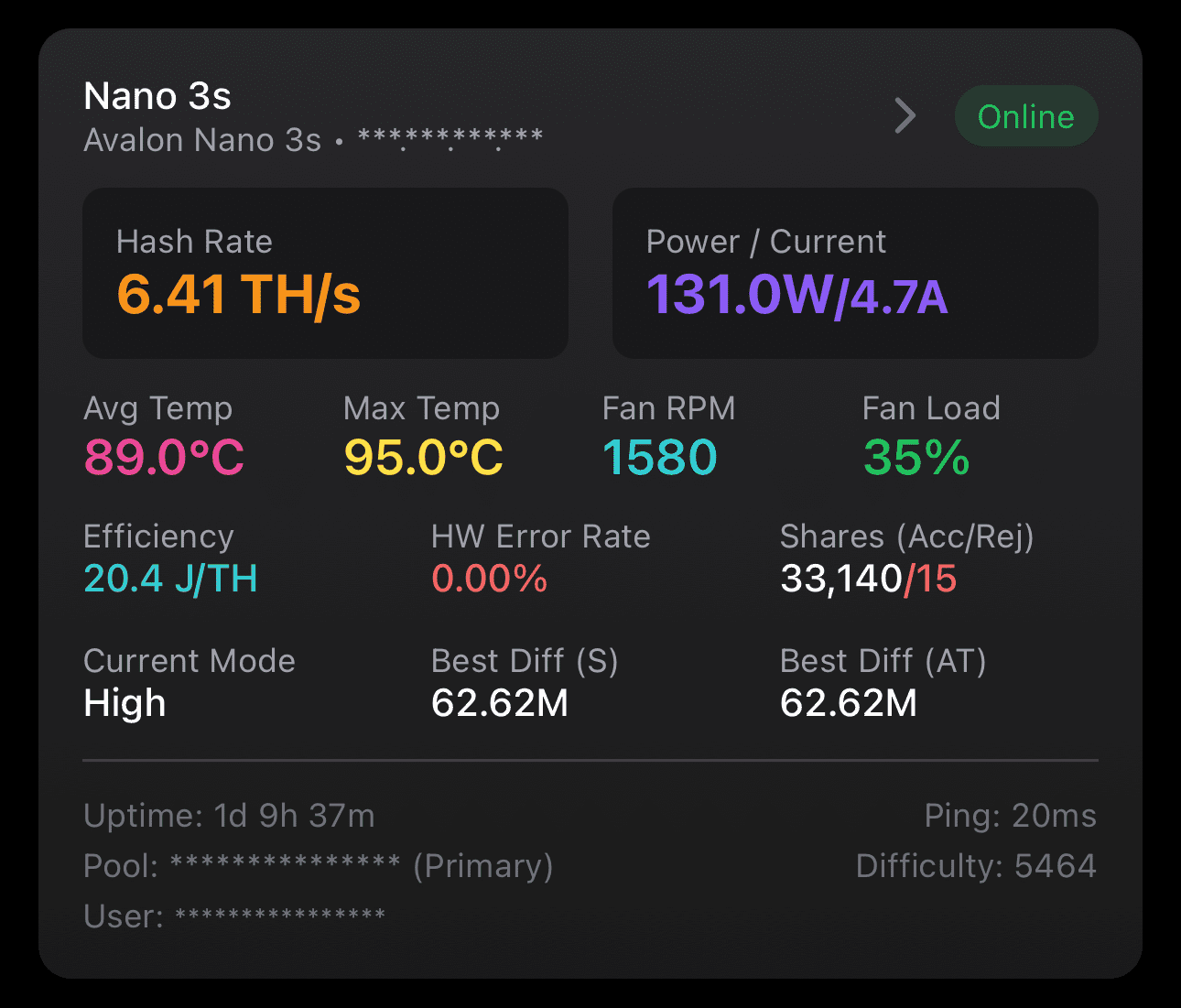
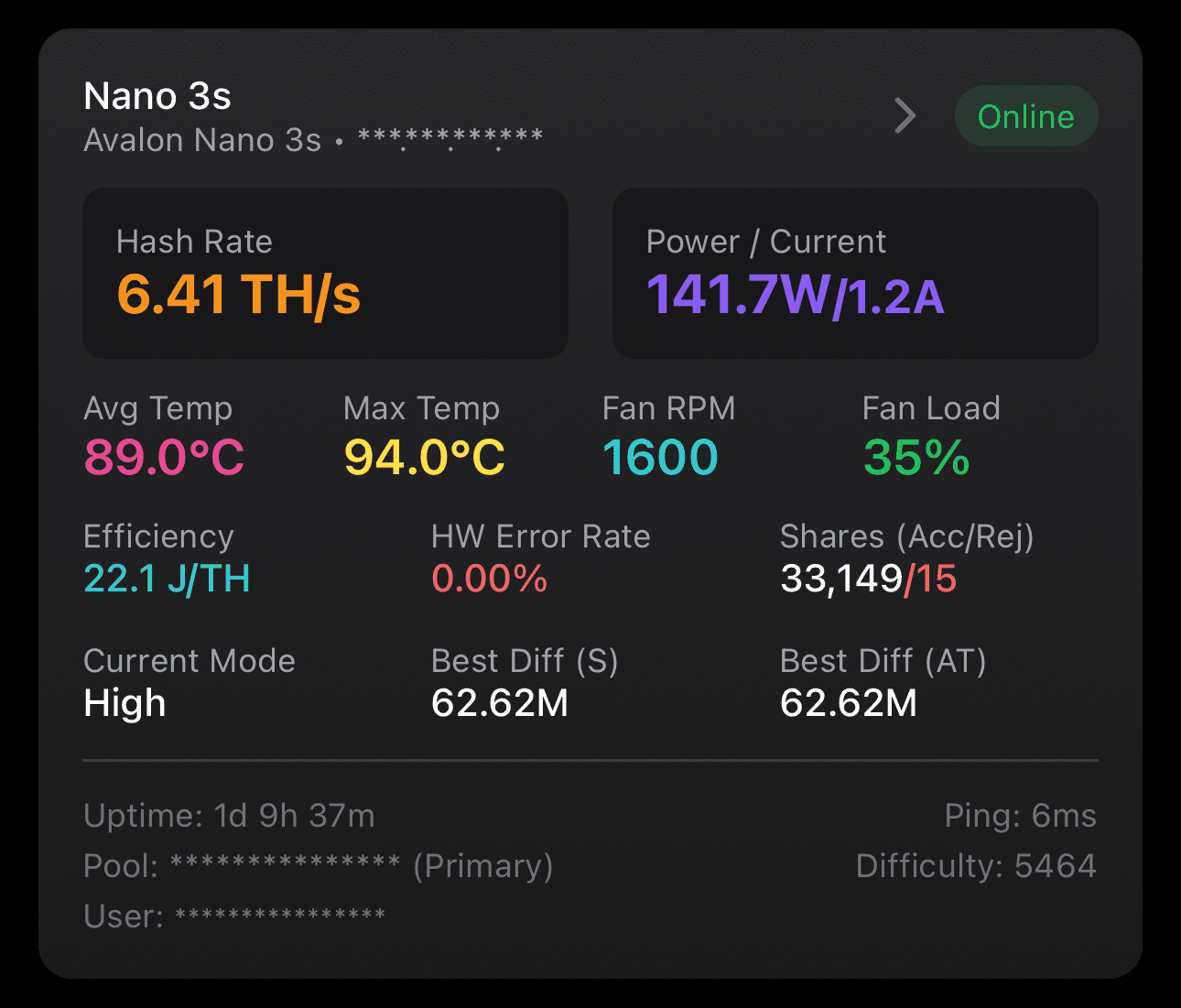
If we look at the power and current from my Nano 3s running in high mode as well as the resulting efficiency, we can see it's reporting 131.0 watts, 20.4 J/TH efficiency and 4.7 amps (from the PSU, 1.1 amps at the wall using 120v calculations [amps = watts / volts]). But, then once we attach a smart plug to it, we can see the real stats are actually 141.7 watts which results in a 22.1 J/TH true efficiency and 1.2 amps of current at the wall...
"Well, how can it be over 3 amps lower than what the miner says?"
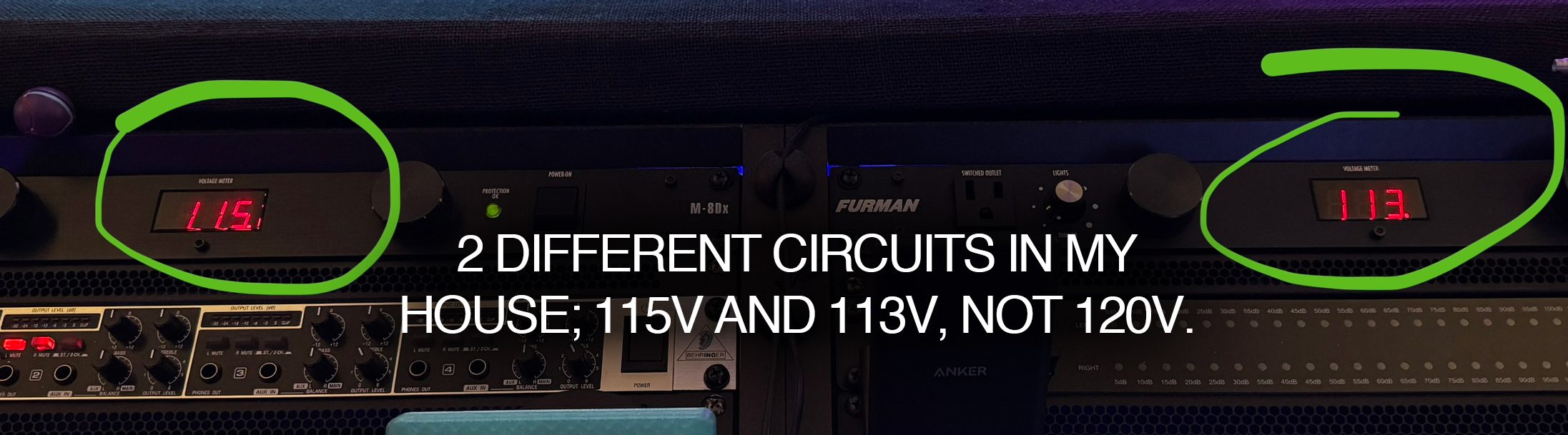
There's some crucial aspects to be considered, here. First, no miners operate at 120V/240V AC. Their power supplies do, but not the miners themselves. We can check Canaan's documentation for the Nano 3s example here and see that it operates at 28V DC @ 5 amps; this is the output of the PSU itself and is why we see 4.7 amps reported from my Nano 3s. So one key part of this is that every miner's PSU is converting the wall power into something else and so any current being reported by the miner is the current of the PSU, not the draw on the wall circuit. The other part of this is that even if we attempted to calculate current from a presumed 120V/240V outlet and miner-reported data, it's still not accurate. Most home circuits are never at a perfect 120 volts and also fluctuate in voltage range continuosly throughout the day, and we can also see a variance of over 10 watts on this Nano 3s on top of that. You can see below in my house, 2 different circuits are at 115V and 113V, not 120V. When you couple that alongside the above illustrated inaccuracy of miner-reported wattages, we can easily see why we can't calculate accurate current readings from that.
What's even more eye-opening is this realization at any sort of scale. I currently run 6 miners: 2x Gamma 602's, a Bitaxe Duo, Nano 3s, NerdQaxe++ and a BMM-101. Without SmartMiner, the miner-reported data indicated a total power consumption of ~427 watts and 20 J/TH efficiency. However, once I've utilized Hashboard's SmartMiner to attach smart plug power data to all of my miners, it's a VERY different story and it's not insignificant. Across my 6 miners, we see that I'm actually using over 80 watts more than I thought I was, and my efficiency is actually 24 J/TH. Again, this much variance exists across just 6 small home miners; it would be even more drastic the more you have.
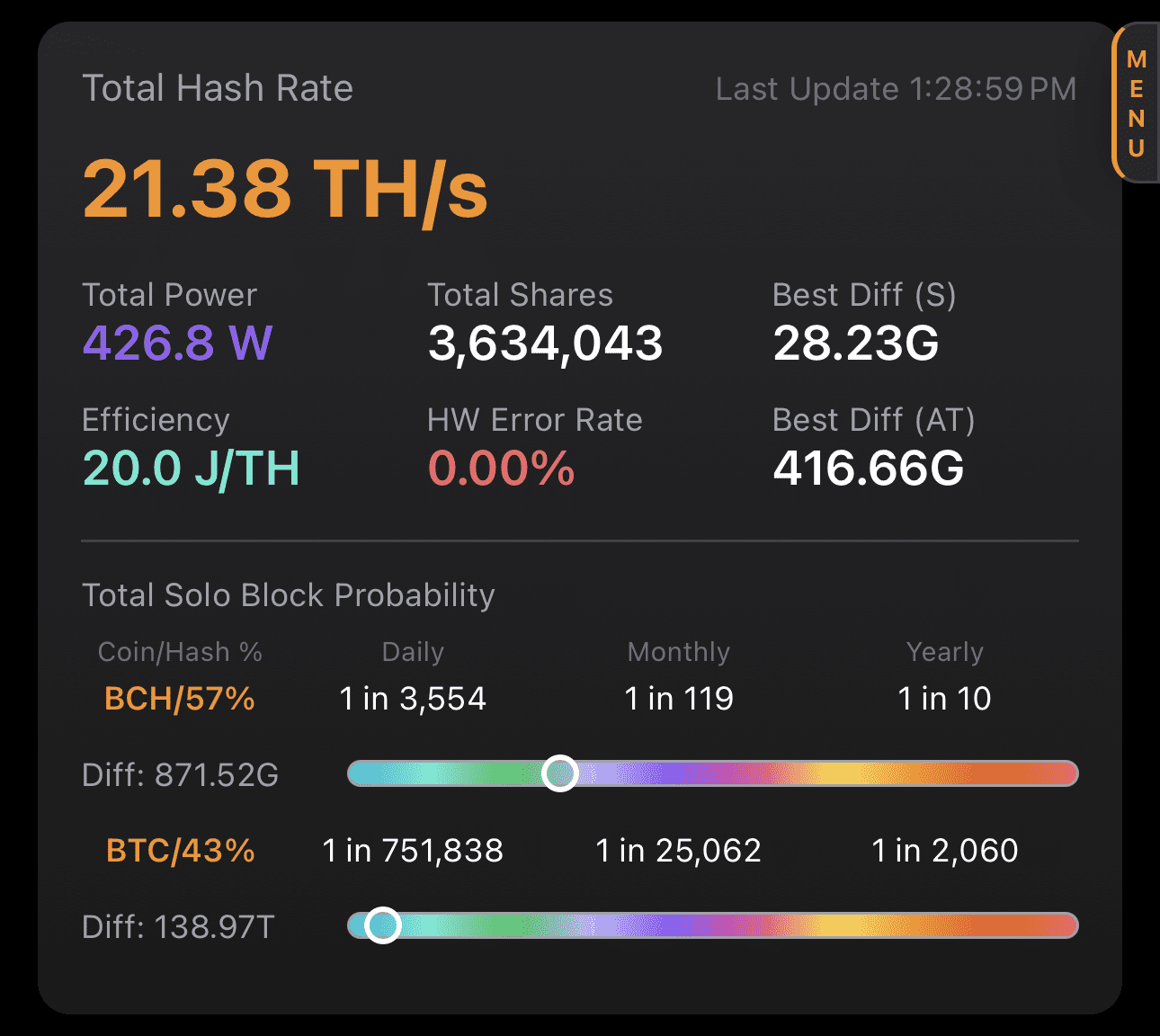
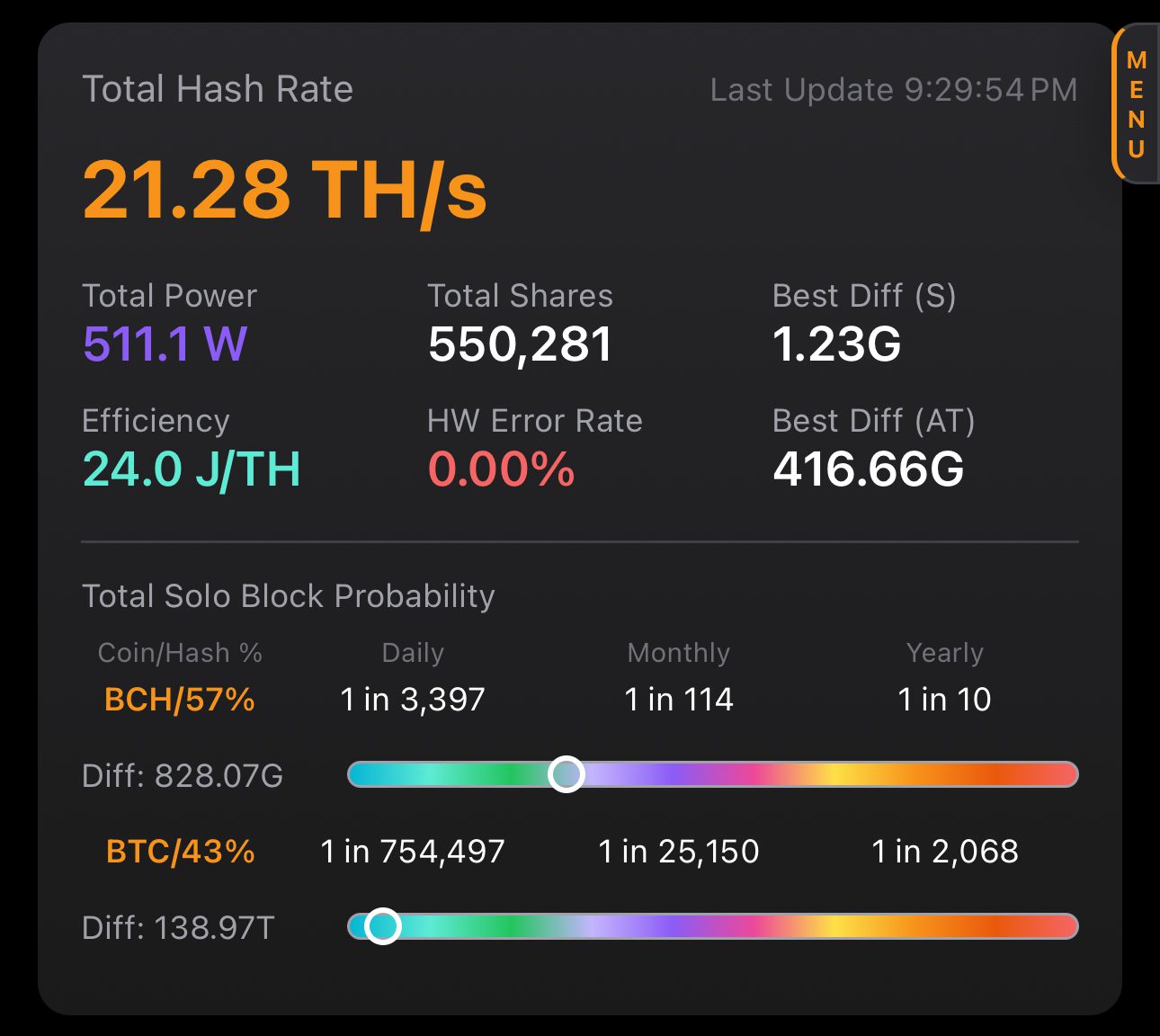
Needless to say, I think I have a bit of re-tuning to do after seeing that 24 J/TH reality. 😵💫 This information is also meaningful for single miners, as all of my miners exhibited at least a 10+ watt jump as well as increased current draw, and I learned that my BMM-101 at max hash rate is actually operating at a ~46 J/TH efficiency. (YIKES)
What this all ultimately uncovers besides the fact that knowledge is power (pun intended), is that you cannot accurately determine your circuit load, power usage or true efficiency based on the miner-reported data. This is a very important distinction and matters if we are truly seeking and valuing accuracy.
SmartMiner Power Setup
This is a general setup guide meant to illustrate the overall process of implementing Hashboard's SmartMiner Power tracking. The process is the same for all Matter API compatible smart plugs, except for the initial steps of integrating the plugs with Apple Home (on iOS) or Google Home (on Android). Please note, Google Home integration of Matter API compatible smart plugs requires a Google Home Hub, such as the Nest Mini 2nd gen. Consult Google documentation to ensure your Home Hub is Matter API compatible. Smart plugs must support Matter API v1.3 or later with Energy Monitoring functionality.
1. Link your smart plug(s) to the manufacturer-provided app, then update firmware.
To start, ensure your phone is connected to your network and Bluetooth is on. The first thing you need to do is follow the instructions that came with your smart plugs for adding them to the manufacturer-provided app. This will sync the plugs with your network. I recommend naming the plugs in line with the miners you intend to plug into them for easier correlation. The next, most important step here, is to update them to their latest firmware. Almost all smart plugs ship without current firmware and in the case of Matter API support, using the latest firmware is crucial for proper functionality. Please note that some apps (such as in my case using Tapo P110M plugs) will show firmware as "current" even when it's not. I found that once you have linked the plug, hard-closing the app, unplugging the smart plug from the wall, plugging it back in and then re-opening the app will trigger the recognition of the firmware update. You can also conversely leave the smart plug plugged in and it should automatically update within 24hrs if you don't mind waiting.
2. Add the smart plug(s) to your platform's Home app.
Your smart plugs should've also come with instructions for adding them to Apple/Google Home. Do not do this first; you must add them to the manufacturer's app and update their firmware first, as detailed above. If you are struggling to get them added to your respective Home app, make sure you are following the correct process for Matter devices. I can offer a bit of guidance based on my experience using the Tapo P110M plugs...
Once added and linked to the manufacturer's app, there should be a settings option for each plug with a "Matter Setup Code" and this is what you will copy and use to add the plug in your Home app. Here were the steps I had to take on each platform:
iOS - Open the Home app, tap the "+" sign in the top right and then "Add Accessory". This should open the QR scanner; tap "More options..." at the top. On the next screen, your plug should appear in the "Nearby" accessories. Tap it, then paste the requested Matter Setup Code that you copied from the manufacturer's app. Ensure you're near the smart plug for this to work.
Android - Open the Google Home app, tap the "+" sign on the top right and then "Device". Next choose "Scan QR code", then tap "Setup with matter pairing code" at the bottom. Paste the requested Matter Setup Code that you copied from the manufacturer's app. Please note that in Google Home, some smart plugs will appear as 2 separate devices; a smart plug, and the Energy Monitor sensor. This is normal.
3. Connect Apple/Google Home within Hashboard.
Open Hashboard and navigate to "SmartMiner Power" in the main menu. Tap the "Connect Apple/Google Home" button and approve the access. Once connected, you will see a list of all assignable smart plugs from within the current Home app configuration on your device. You may also choose to view hidden/unavailable plugs which were detected but not currently compatible with the Matter API. (If you expected a certain smart plug to be available but it's not, ensure it has the latest firmware and has been properly added to your Home app as a Matter device.) Next in the "Miner Assignments" section, assign the intended smart plugs to your corresponding miners. The implementation allows and accounts for multiple miners being assigned to a single smart plug. This can apply in some cases, such as running multiple Bitaxe on a single PSU. Ideally, each PSU should be on it's own smart plug. Once you have assigned smart plugs to your miners, Hashboard will automatically override reporting and tracking of the miner-reported power and efficiency data with the real plug-reported data.
If you are still struggling to add the plugs to the manufacturer app or Apple/Google Home, I would recommend contacting support at the manufacturer of your smart plugs. You can also reach out to me and I'll do my best to help you. Happy (more accurate) miner monitoring!

Start using Hashboard today for FREE!
Available on both iOS and Android.


* Background monitoring functionality is limited to the confines of what your phone's OS will allow.